
When an SFP transceiver will not link, the root cause is often mechanical fit, optical polarity, or switch compatibility rather than “bad hardware.” This SFP module installation guide helps network engineers and data center technicians install modules safely, verify DOM readings, and bring up fiber links with repeatable steps. Use it for common deployments like 10G SR in leaf-spine racks or 1G copper SFPs in access closets.
Before you touch the cage: compatibility and electrical basics
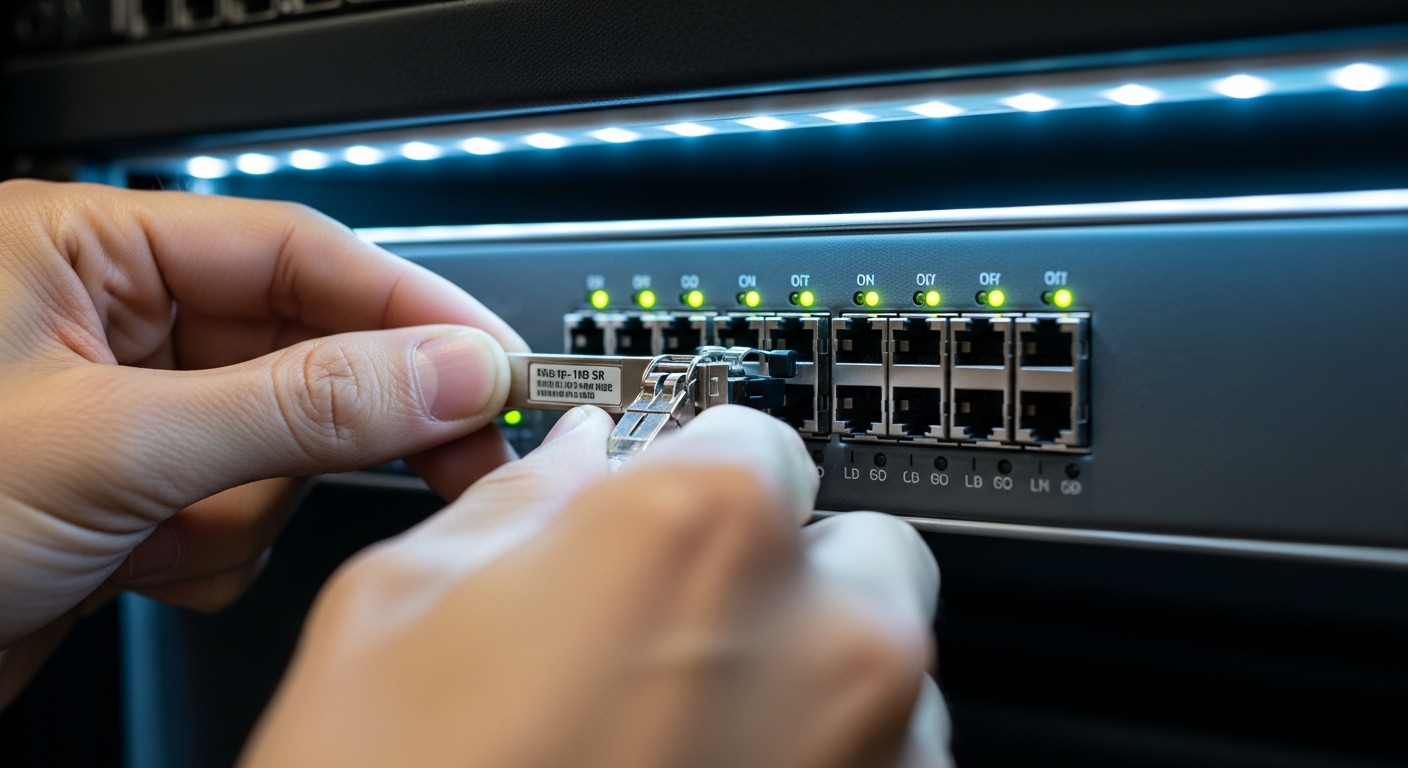
Start by matching the transceiver to the host port type and optics standard. For example, 10GBASE-SR modules must be used on ports that support 10G optics and the switch must be configured for the correct speed/encoding. IEEE references include IEEE 802.3ae (10GBASE-SR) and IEEE 802.3z (1000BASE-X). Also confirm whether your switch requires vendor-validated optics or supports third-party modules via DOM and diagnostics.
Know what you are installing
In practice you will see three frequent SFP categories: optical SFP (LC fiber), copper SFP (RJ-45 or direct attach), and SFP with different optical reach options. Optical SFPs are typically specified by wavelength band (for example 850 nm for SR), reach (meters), and connector style (usually LC). Copper SFPs include RJ-45 or twinax variants and have stricter cable plant constraints.
| Spec | Typical Example | What to Verify on the Switch |
|---|---|---|
| Data rate | 1G (1000BASE-SX/LX) or 10G (10GBASE-SR) | Port speed supports the negotiated mode |
| Optical wavelength | 850 nm for SR | Correct transceiver type for the fiber plant |
| Reach | SR often 300 m on OM3 (varies by vendor) | Use the correct fiber grade and link budget |
| Connector | LC duplex | Clean mating connectors and correct polarity |
| DOM | Tx/Rx power, temp, voltage | Verify DOM is readable and alarms are clear |
| Operating temp | Commercial often 0 to 70 C or vendor extended | Match rack environment and airflow |
Step-by-step: mechanical insertion, latch check, and DOM sanity
In my field work, the fastest way to avoid repeat truck rolls is to follow a strict order: handle, inspect, insert, then verify software state. For powered hosts, many switches tolerate insertion under power (“hot swap”), but you should still avoid forcing the module and confirm you are using the correct cage. Before insertion, inspect the module contacts for debris and the fiber endfaces for scratches.
Insertion sequence that prevents mis-seats
- Power down or follow your vendor’s hot-swap policy. If hot swapping is allowed, keep your hands steady and do not touch the optical windows.
- Align the SFP body with the port rails and slide it in smoothly until the latch clicks.
- Confirm the latch is fully engaged. A partially latched module can show “present” in software but will not establish optical link.
- Connect LC duplex fiber to the module, then verify the patch panel labels match the transceiver polarity plan.
DOM checks that actually diagnose issues
Once the interface is up, check DOM values from the switch CLI or management plane. Look for transmit power and receive power within the vendor’s spec window, plus temperature and voltage stability. If DOM is unsupported, some platforms will still bring up link, but you lose the fast diagnostic path.
Pro Tip: In many link failures, the module is “installed” but the receive fiber is reversed. DOM may still show a valid temperature and voltage, so the presence of DOM does not prove polarity correctness. Always verify Tx to Rx mapping at the patch panel before assuming a bad transceiver.
Fiber polarity and cleaning: the silent killers of link bring-up
Optical SFPs depend on duplex fiber and strict polarity. With LC duplex, the module’s Tx must connect to the far end’s Rx, and the module’s Rx must connect to the far end’s Tx. If you use pre-terminated trunks or polarity adapters, follow the adapter scheme your cabling team documented.
Cleaning and inspection workflow
I treat every new connection as “unclean until proven otherwise.” Use lint-free wipes and isopropyl alcohol approved for fiber cleaning, and inspect with a microscope if available. Even a small contamination on an 850 nm interface can cause marginal receive power that looks like intermittent flaps.
Selection criteria checklist for the right module and the right cage
Before ordering, engineers should weigh operational constraints against module specs. This checklist reflects what I see during acceptance testing and production cutovers.
- Distance and fiber grade: confirm OM3/OM4/OS2 and expected link budget versus vendor reach claims.
- Switch compatibility: confirm the exact platform supports the module type and speed; some switches restrict optics vendors.
- DOM support and thresholds: validate that the switch reads DOM and that alarms align with your monitoring policies.
- Operating temperature and airflow: ensure module temp range fits the rack and that you have adequate front-to-back airflow.
- Connector cleanliness: if your deployment uses dusty patch panels, plan for cleaning tools and inspection.
- Vendor lock-in risk: test third-party optics in staging to avoid production “optics not allowed” events.
Common mistakes and troubleshooting that field teams can repeat
When a link does not come up, do not jump straight to “replace the SFP.” Use a structured approach that separates mechanical, optical, and software causes.
Failure mode 1: module seats halfway
Root cause: latch not fully engaged, often due to misalignment or an obstruction in the cage. Solution: remove the module gently, inspect contacts, reinsert until the latch clicks, and confirm link state changes in the next polling interval.
Failure mode 2: reversed duplex polarity
Root cause: Tx/Rx mapping swapped at either end or incorrect polarity adapter usage. Solution: swap LC fibers, or re-map using the documented polarity method; recheck DOM receive power and link state.
Failure mode 3: wrong fiber type or over-distance
Root cause: using an SR module on a cable plant that exceeds the OM rating or introduces high attenuation. Solution: measure attenuation with an OTDR or certified loss test, then replace with the correct reach option (for example, a longer-reach variant or different wavelength standard).
Failure mode 4: switch optics restriction or unsupported DOM
Root cause: platform rejects optics vendor ID or cannot parse DOM. Solution: check switch logs for “unsupported transceiver” messages, validate with vendor compatibility lists, and test alternate modules like Cisco SFP-10G-SR or FS.com SFP-10GSR-85 where appropriate.
Cost and ROI notes: what you pay for beyond the transceiver
Typical pricing varies by speed and reach. In many markets, 1G optical SFP modules often cost less than 10GBASE-SR, while vendor-locked OEM modules may carry a premium. Third-party optics can be cost-effective, but factor in engineering time for validation, the risk of DOM incompatibility, and higher failure costs if you cannot monitor thresholds.
From a TCO perspective, the biggest savings come from reducing downtime and minimizing truck rolls through better install discipline and monitoring. If your acceptance tests show stable DOM readings and low alarm rates, third-party optics can be a practical choice; otherwise, standardize on a compatible OEM or a vetted catalog for your switch models.
FAQ
What tools do I need for an SFP module installation guide workflow?
Use lint-free wipes, approved alcohol for fiber cleaning, and ideally a fiber inspection microscope. For verification, rely on switch CLI/GUI to read interface status and DOM values, and use an optical power meter or OTDR if you suspect attenuation issues. Keep labels and polarity documentation accessible.