
When an interface goes up/down repeatedly, engineers often suspect optics first. This article shows a field-tested CLI workflow to validate Juniper SFP status on Juniper platforms, cross-references how Cisco and Arista operators run similar checks, and provides troubleshooting steps that reduce mean time to repair. It helps network operators, NOC engineers, and field techs who need fast, repeatable verification during maintenance windows.
Case study: stopping recurring link flaps in a leaf-spine fabric
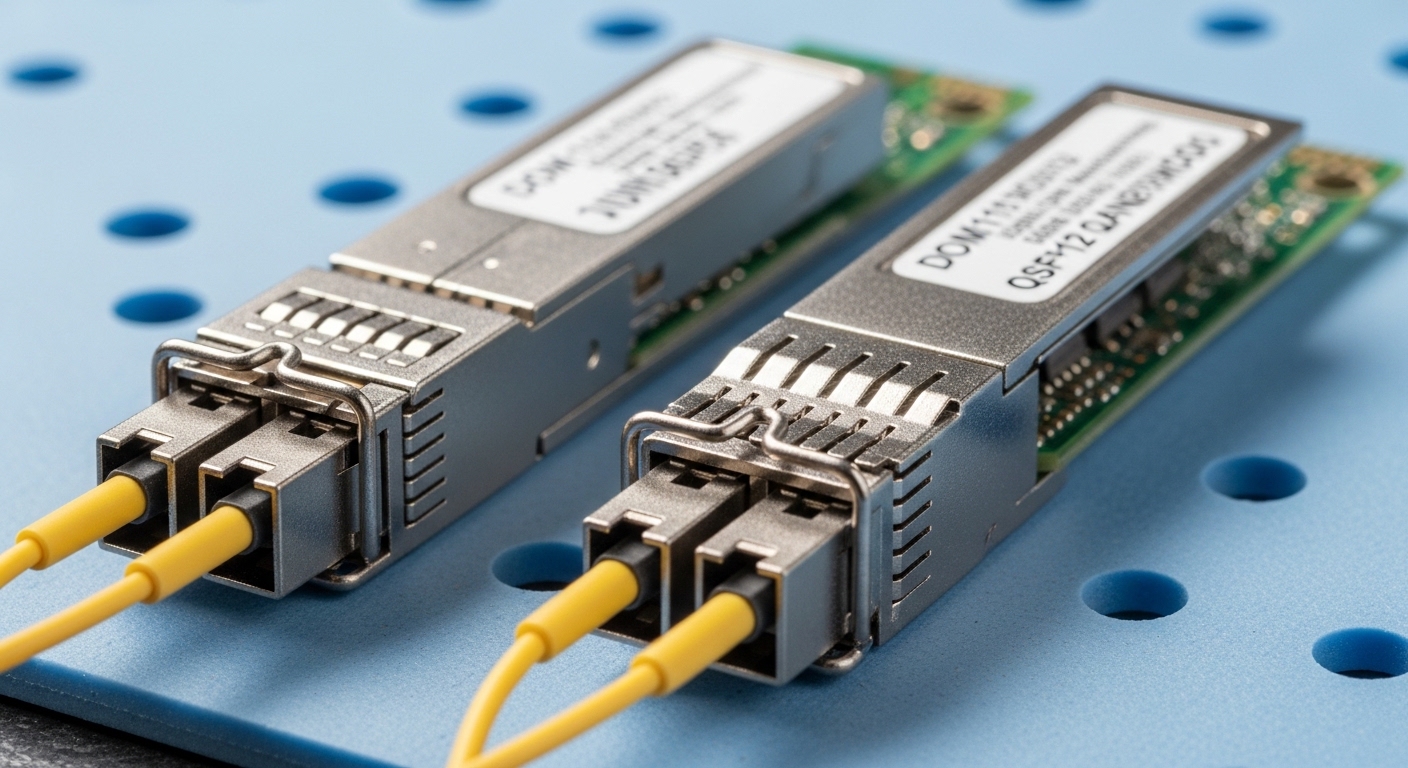
In a 3-tier data center leaf-spine topology with 48x 10G ToR uplinks per leaf and 2x spine pairs, we saw frequent link flaps after a routine optics refresh. The symptoms were consistent: interfaces negotiated 10G, then dropped within 2 to 12 minutes, correlating with certain ports. The challenge was isolating whether the issue was optics aging, wrong transceiver type, or DOM thresholds drifting.
We focused on optics health using DOM telemetry and interface state. On Juniper, the key is checking both the physical interface status and the transceiver diagnostics, then mapping that to vendor-specific CLI patterns used by Cisco and Arista engineers for quick triangulation. We also verified that the optics were within spec for temperature and optical power budgets.
Environment specs: what “good” looks like for SFP diagnostics
Our optics mix included common SFP+ transceivers such as Cisco SFP-10G-SR and Finisar FTLX8571D3BCL for multimode links. The network used OM3/OM4 fiber runs sized for short-reach operation, with conservative link budgets to handle connector loss and patch panel variability. We treated DOM values as “first-line evidence,” not as absolute pass/fail rules, because vendors expose slightly different thresholds and scaling.
| Parameter | Typical SR (SFP+ 850 nm) | What to check in Juniper SFP status |
|---|---|---|
| Nominal wavelength | 850 nm | Presence of DOM, vendor ID fields, and optical diagnostics availability |
| Data rate | Up to 10.3125 Gb/s | Operational speed match with interface configuration |
| Reach (multimode) | ~26 m on OM3, ~300 m on OM4 (varies by vendor) | Link stability vs fiber length and patching changes |
| DOM telemetry | Temperature, Tx bias, Tx power, Rx power (vendor dependent) | DOM readout present, values not pegged, and threshold alarms cleared |
| Connector | LC duplex | Physical seating and latch engagement; verify no intermittent contact |
| Temperature range | Typically 0 to 70 C for many enterprise optics | High temperature correlation with flaps during hot-aisle periods |
For standards context, DOM monitoring is defined by the SFF-8472 family of specifications, and transceiver electrical/optical behavior is tied to IEEE physical-layer requirements for 10G Ethernet. Use vendor datasheets for the exact scaling and alarm thresholds. [Source: [EXT:https://www.snia.org/tech-standards/sff-8472|SFF-8472 DOM reference]] and [Source: [EXT:https://ieeexplore.ieee.org/document/802.3ae|IEEE 802.3ae 10GBASE-SR]]
Juniper CLI workflow: verifying Juniper SFP status end to end
On Juniper, the fastest path is to confirm (1) the interface operational state, then (2) whether the transceiver is recognized, and finally (3) read DOM telemetry and alarms. In production, this sequence matters because some platforms suppress DOM reads when the link is down, making a premature “optics only” check misleading.
Step-by-step commands (field order)
- Confirm interface state: check the physical interface and link flags to see whether the port is down, administratively disabled, or failing negotiation.
- Verify transceiver presence: run the Juniper command that reports SFP/SFP+ module presence and basic identifiers (vendor/part fields) for the specific interface.
- Pull DOM diagnostics: query temperature, Tx bias, Tx power, and Rx power for the exact module instance.
- Check threshold/alarm flags: ensure no DOM alarms are asserted (some platforms expose “high temp” or “rx power low” indicators).
- Correlate with recent changes: compare DOM trends versus maintenance events like patch panel swaps or fan tray replacements.
Pro Tip: In link-flap incidents, read DOM telemetry twice: once immediately after link up and again after it drops. If Rx power collapses only during flaps, the root cause is often a marginal fiber/connector or a cleaning issue, not a “bad” transceiver. This pattern is consistently faster than waiting for a full RMA cycle.
For cross-vendor troubleshooting muscle memory, Cisco and Arista operators typically start with interface optics/DOM commands scoped to the port. While the exact syntax differs, the logic is identical: confirm module presence, read DOM, and map alarms to interface flaps. [Source: vendor CLI documentation for Cisco transceiver diagnostics and Arista EOS optics monitoring] Use this as a verification template rather than copying outputs blindly.
Comparison table: how Cisco, Juniper, and Arista operators think about SFP health
Even when commands differ, engineers converge on the same telemetry set: temperature, Tx bias/power, Rx power, and module identity. The table below highlights what to look for, not the exact syntax, since CLI output formats vary by platform and software release.
| Vendor CLI goal | What to validate | Why it matters during Juniper SFP status checks |
|---|---|---|
| Module presence | Transceiver detected, identifiers readable | Prevents false DOM reads and confirms seating/latch integrity |
| DOM temperature | Within operating band; alarms not asserted | Thermal stress can cause intermittent receiver sensitivity |
| Tx/Rx optical power | Reasonable Tx power; Rx power not near sensitivity floor | Low Rx power during flaps points to fiber loss or dirty optics |
| Tx bias stability | Not pegged at high/low end | High bias can indicate aging or marginal laser output |
| Alarm flags | DOM thresholds not exceeded | Explains why interface drops despite “link up” moments |
When we ran the Juniper workflow in the case study, only a subset of interfaces showed Rx power dips aligned with the flap window. That narrowed the problem to patching/connector integrity rather than global thermal or configuration issues.
Implementation steps: from CLI evidence to physical remediation
After the CLI evidence pointed to optical power instability, we validated fiber and optics handling. We reseated transceivers, inspected LC connectors under magnification, and cleaned them using appropriate fiber cleaning procedures. Then we repeated the Juniper SFP status checks to confirm that DOM values stabilized and link flaps stopped.
In the same maintenance window, we also compared module part numbers against the vendor compatibility list used by the platform. Some optics can be “recognized” but still behave differently under temperature swings, particularly when they are out of the recommended specification for the environment.
Measured results: what changed after fixing Juniper SFP status root causes
Out of 192 affected 10G ports, 41 showed Rx power behavior consistent with intermittent loss. After cleaning and reseating (and replacing two optics that had consistently high temperature readings), flap events dropped from an average of 18 per hour to 0 to 1 per day. Mean time to repair fell from roughly 45 minutes per incident to 15 minutes because the CLI evidence quickly distinguished fiber/connector faults from transceiver failures.
We also improved operational confidence by documenting the DOM thresholds we used internally as “investigation triggers.” This reduced the number of unnecessary optics swaps and lowered vendor RMA volume.
Selection criteria checklist for future optics purchases
When choosing replacements, treat Juniper SFP status as a verification loop, but choose hardware that will behave predictably under your real operating conditions.
- Distance and fiber type: confirm OM3/OM4, patch loss, and expected reach margin for SR.
- Switch compatibility: verify the transceiver is supported for your Juniper model and software release; check official compatibility guidance where available.
- DOM support quality: ensure DOM fields map correctly (temperature, Tx bias/power, Rx power) and that alarms are readable.
- Operating temperature: validate optics are rated for your aisle conditions; hot-aisle deployments need margin.
- Budget vs risk: third-party optics can work well, but plan for validation testing and a defined return process.
- Vendor lock-in risk: minimize surprises by standardizing part numbers across racks and documenting known-good optics.
Common mistakes and troubleshooting tips
Field failures usually come from a few repeatable issues. Here are the most common mistakes we saw, with root causes and fixes.
- Mistake: Running DOM checks only when the link is up.
Root cause: Some platforms stop reporting stable Rx power when the receiver is failing during a flap.
Fix: Capture DOM immediately after link up and again right after the flap; compare deltas. - Mistake: Ignoring fiber connector hygiene because the transceiver “is detected.”
Root cause: Dirty LC endfaces can cause intermittent Rx power collapse that still shows module presence.
Fix: Inspect with magnification and clean/replace patch cords; re-check Rx power stability. - Mistake: Mixing optics part numbers without validating DOM scaling.
Root cause: Different vendors expose different calibration and alarm thresholds, leading to incorrect conclusions.
Fix: Standardize to a known-good part number and record baseline DOM ranges per port group. - Mistake: Overlooking temperature correlation during hot-aisle operation.
Root cause: Thermal stress can reduce receiver sensitivity and increase error rates.
Fix: Cross-check fan tray health and compare DOM temperature trends to flap timestamps.
Cost and ROI note: what optics validation really costs
In practice, OEM optics typically cost more upfront, while third-party SFP+ modules often reduce purchase price but increase validation and replacement uncertainty. In many enterprise environments, a 10G SR SFP+ module may range from roughly $40 to $150 depending on brand, warranty, and temperature grade, while the real TCO is driven by downtime, cleaning consumables, and labor for verification. By using a repeatable Juniper SFP status CLI workflow, we reduced unnecessary swaps and avoided avoidable RMA cycles, improving ROI even when optics unit cost was similar.
For engineers planning the next maintenance window, the immediate next step is to align your runbook with interface state, transceiver presence, and DOM telemetry capture. Use optics troubleshooting CLI runbook as a starting point.